
As promised, I prepared a demo to show you how we can use toggles to switch colors in Power BI reports from Dark to Light mode and reverse.
In this post, I will show you this design with an example..
First, I created a light colors for visuals on this report’s page. Then, I add the toggle on this page and two texts named “Dark” / “Light” on both sides of the toggle.
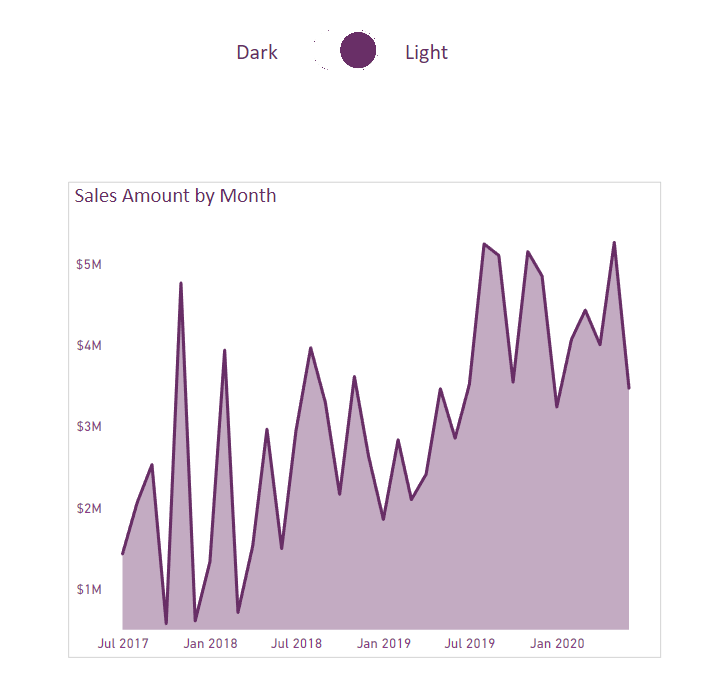
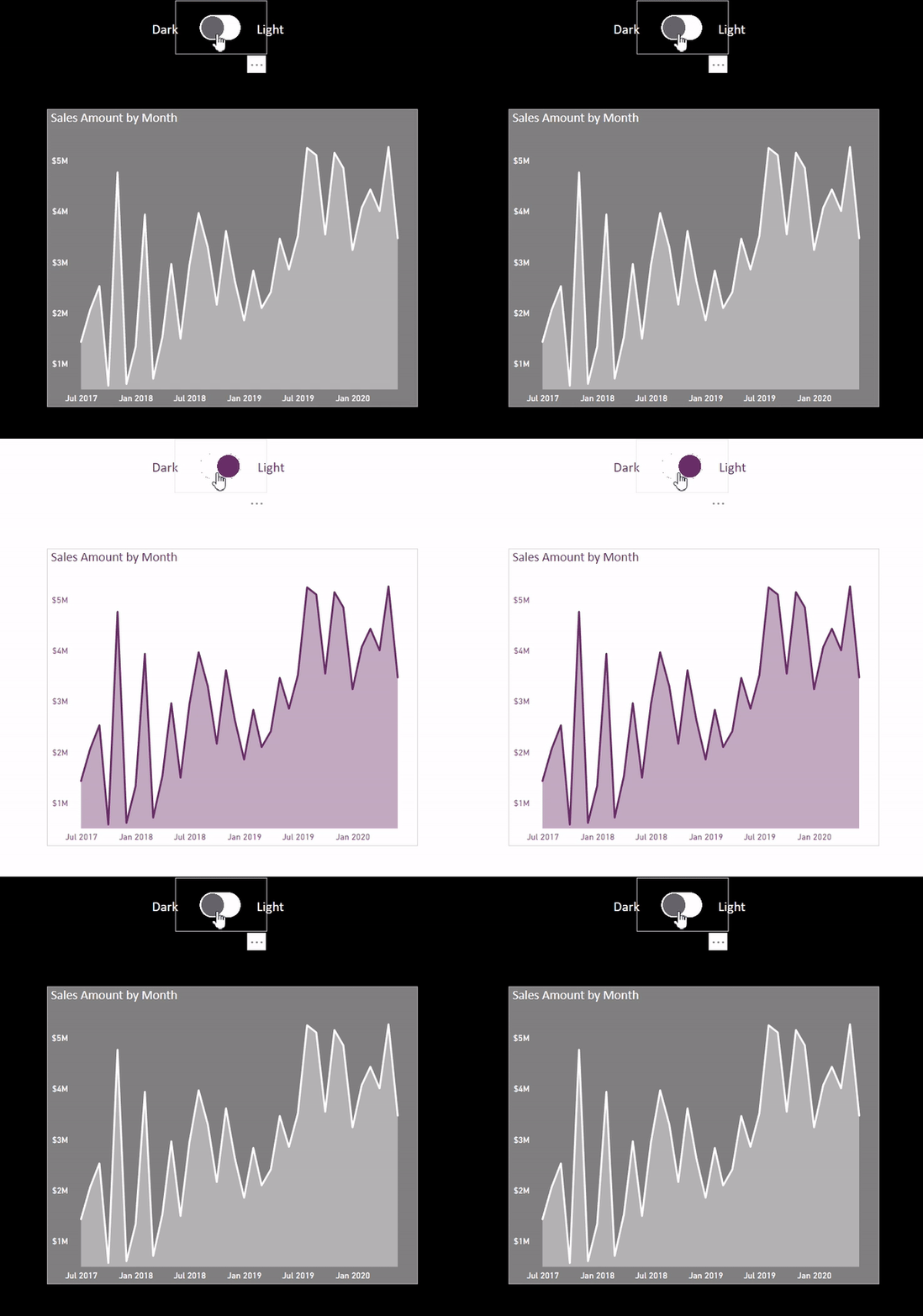
Next, I duplicate all visuals with dark colors from this page at the same position inside the same page, then I hide the visuals that existed here with light colors. I just need to add a new toggle with the grey color pointing to the Left (Dark) and put it on top of the existing toggle.

For creating a dark background in Dark mode, go to View tab >> select Selection pan >> Layer order and put a rectangle shape with black color; under all visuals. By doing this, the Shape will appear behind all visuals.


Then by following the steps from my previous toggle post, I made this toggle that works perfectly.
And here is the result:
Let me know what do you think? 👊
Did you use it before? Comment below.😊

 Atefeh BI
Thanks for sharing.
LikeLike
my pleasure, Hossein jan 😊
LikeLike