
In this post, I will create the dynamic title for the Table visual in Power BI report. This method can apply to almost all visuals with the title.
I used Calendar Visual to filter Table visual. For instance, selecting a date in the Calendar will filter the Table visual. Following pervious Post Tips#10 we have a date slicer and Calendar visual, and I added a Table containing details about employees’ leave types.

For creating the dynamic title, I wrote this measure:

And put it in the title of the Table visual.
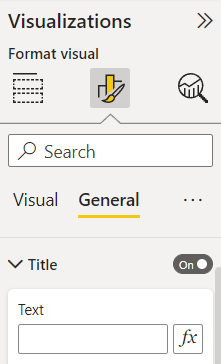
In Title dropdown click on fx, then in Title text >> Format style >> Field value >> measure Vacation Title all employee.

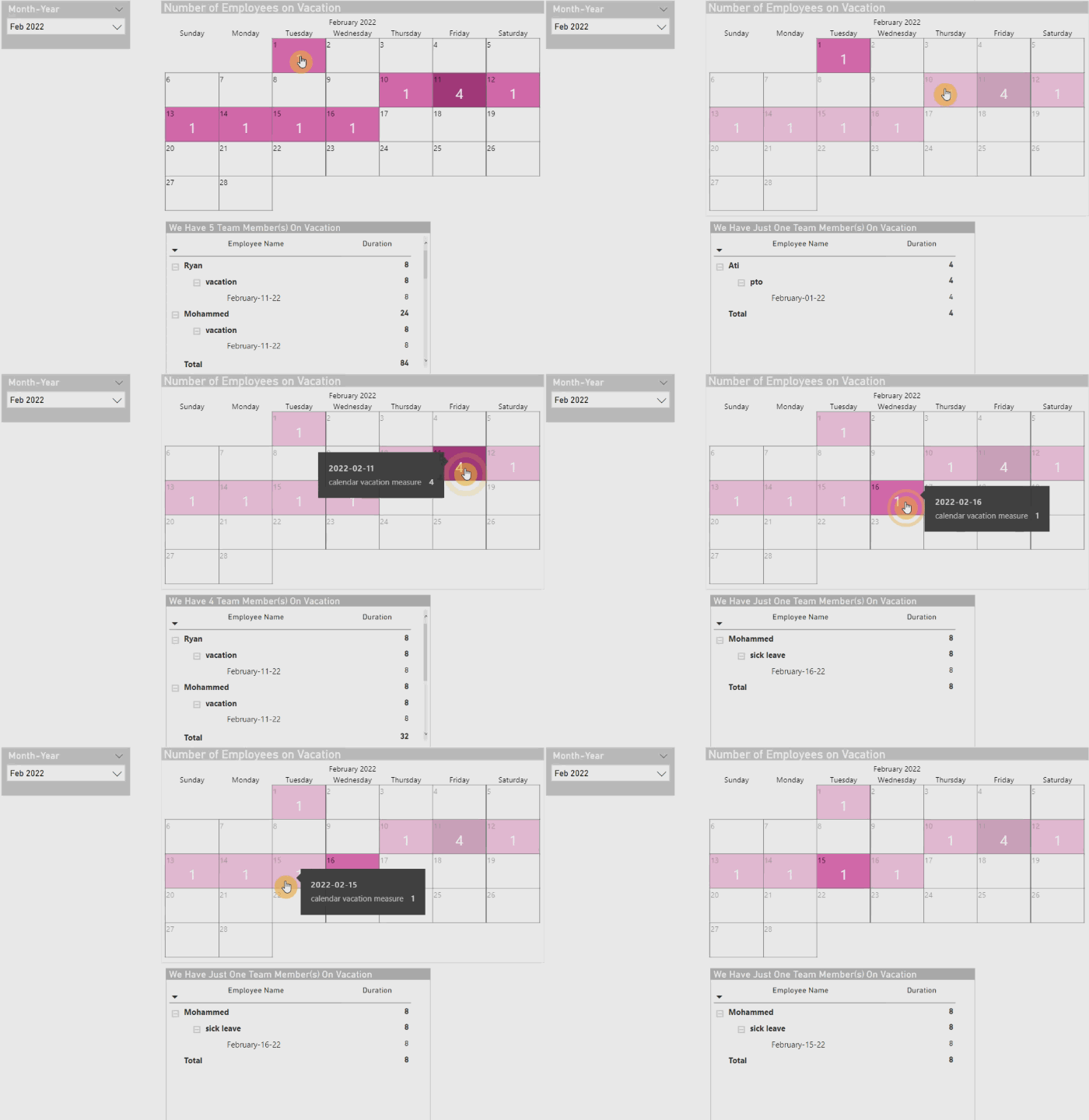
Now by selecting each date we have employee on leave, the number of employees and details inside the Table visual will change.
I love to hear your thought about this post.

 Atefeh BI
👏🏻👏🏻👌🏻
LikeLike
😊
LikeLike