
Have you ever used Top N Slicer in your Power BI reports?
This post will show you how to create Top N Slicer.
In this example, we will find Top N Product Colors based on their Sales Amount.
First, I wrote the RankX Measure:

Then, I added a Table and Data Manually to the report for the Top N Number That needs in this report. This Table has Two Columns, “String Top N” and “Values Top N”:


And Sort “String Top N” by “Values Top N”:

Next, add Slicer to the report and select the “String Top N” column.

For connecting Slicer to other Visual, I created measure Pick N:

Pick N measure will pick Values From “Values Top N” column.
If either selected from Slicer, measure Pick N shows “Values Top N” or if not, it shows Max Rank Value that exists. That means this measure always gives us the number.
Then we will apply Pick N measure to the measure Sales Amount (Rank) then instead of “Sales Amount” that’s connected to the Slicer Top N.
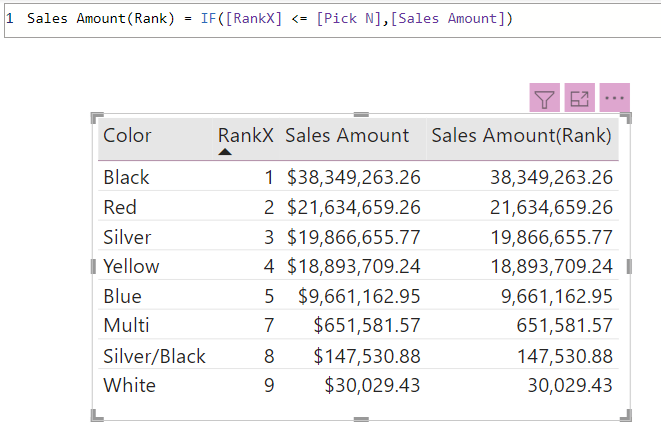
And here is the result:

Comment below with your ideas about this post !!!

 Atefeh BI
Perfect
LikeLike
Merci Hamidreza.
LikeLike
Eyval
LikeLike
merci…
LikeLike
i realise if i add other variables into the table, the slicer will not work. How do i solve this?
LikeLike
I am happy you used this tip, I added “ALL” to the table in Tip 13,please check it. Actually if you want to add numbers to the “table TopN”, it works, but if you need to add other than number in values, for each specific “value” it should describe in the dax code.
LikeLike