
As some friends asked me questions about Tip#12, I picked two of them:
1)How to add “All” to the “TopN slicer”?
2)How to create the slicer to select each number N we need to evaluate TopN?
I wrote about the TopN slicer in my previous post Power BI Tips#12 and will continue to answer these questions in this post.
The first part, Starts by adding the row “All” to the column String TopN, which is the column of the Table I created previously for the slicer. (I explained this with all details in the post “Power BI Tips #12)

Then we can change that measure we had before to this:

Next, use this measure in Sales Amount(Rank):


Then we have this result:

Second Part, I will show creating all the different N values that exist in the column we want to pick TopN based on that. Dynamic TopN based on the distinct count of that column.
First, I added a parameter from the modeling tab:

There are lots of ways to achieve this goal. I used a Numeric range that was incremented by the number 1 and put the random number for the “Max”. When the column table appeared, I selected on parameter column and changed the Max range to the Max number of different cells in the “Color” column:

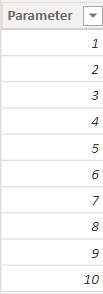
The parameter code gives me a single-column table with different N values from 1 to Max non-blank values that I need for TopN. The “Color” column has 10 distinct values.
Then simply change the measure we had before:

Next, added “Pick N 2” to the main measure:

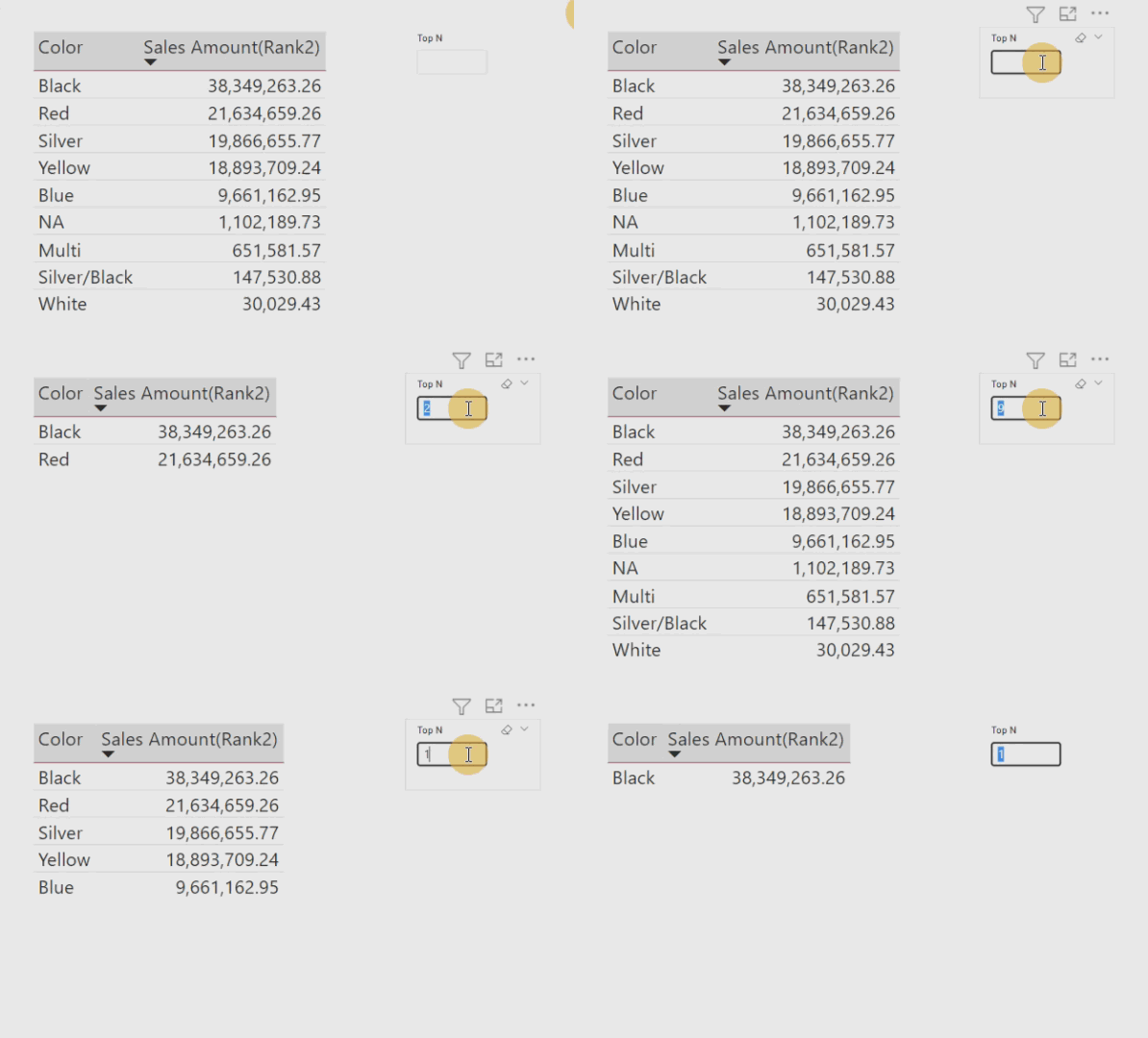
And, here is what we expected:
Comment your thoughts.

 Atefeh BI
👌🏻عالی
LikeLike
merci Hossein jan 😉
LikeLike