
In this post, I will import the sample CSV file to Databricks. I created sample data from the AdventureWorks database and saved it in a CSV file.

For importing that to Databricks, select Create >> Table:

The page with this interface will appear:

Browse for the CSV file:

There are two ways to create the Table:
First: Create Table with UI >> Once you click on this, cluster selection will appear:

Select the cluster and preview the table:

Fill in the Table Name ( just lowercase is allowed and no space), then fix data types ( I changed “CustomerKey” STRING to INT), Column delimiter, and File Type, and the First row is header and preview the table:

After clicking on Create Table:
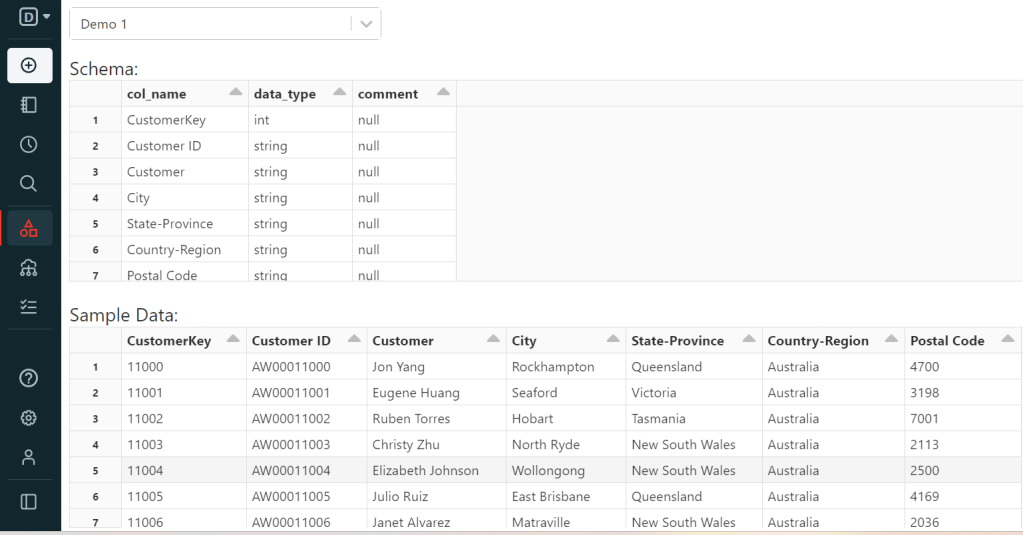
Next, query the table:

In each cmd cell in the Notebook to change language, we can use %. For example in this Demo1, I used %sql to change the cell language from Python to %sql because the Demo1 Notebook default language is Python in this example.
For checking the table, you can open Data Explorer:

The second choice is Create Table in Notebook. Selecting this will create the Notebook and you can run it to have your new table:
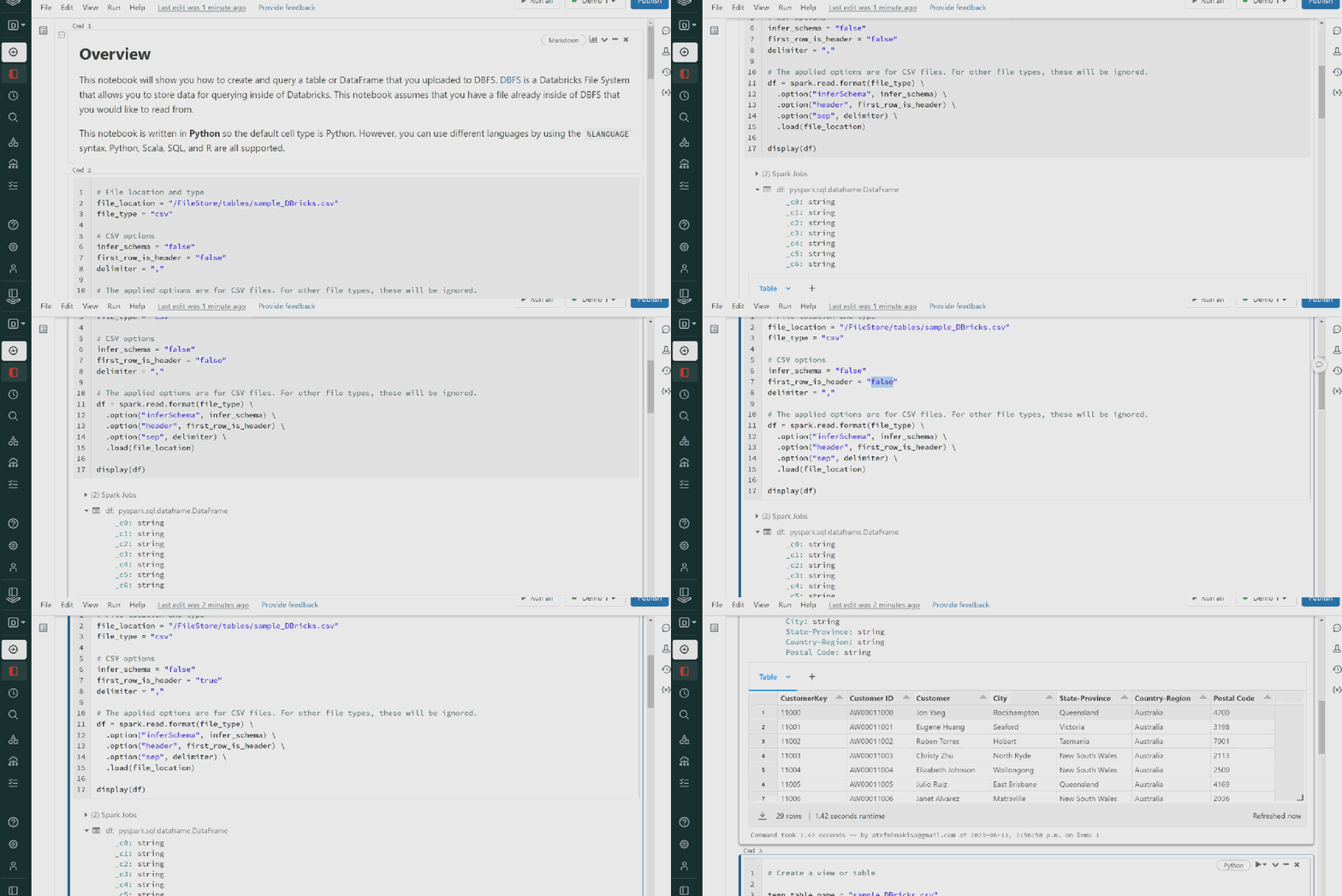
I changed the first_row_is_header = “true” from false, As my table has a header.
As you can see, we have all datatypes String.

In schema definition, we can change datatypes by importing types to the cmd cell. I will explain the types in future posts with more details.
For example, if you want to change the type to Integer for “CustomerKey”:

here is the result:

You like to start with Databricks??? Leave your comments. 👊

 Atefeh BI