
In this post, I will go to an example of creating great visuals with the help of the new power bi feature called “Custom label” in visual labels.
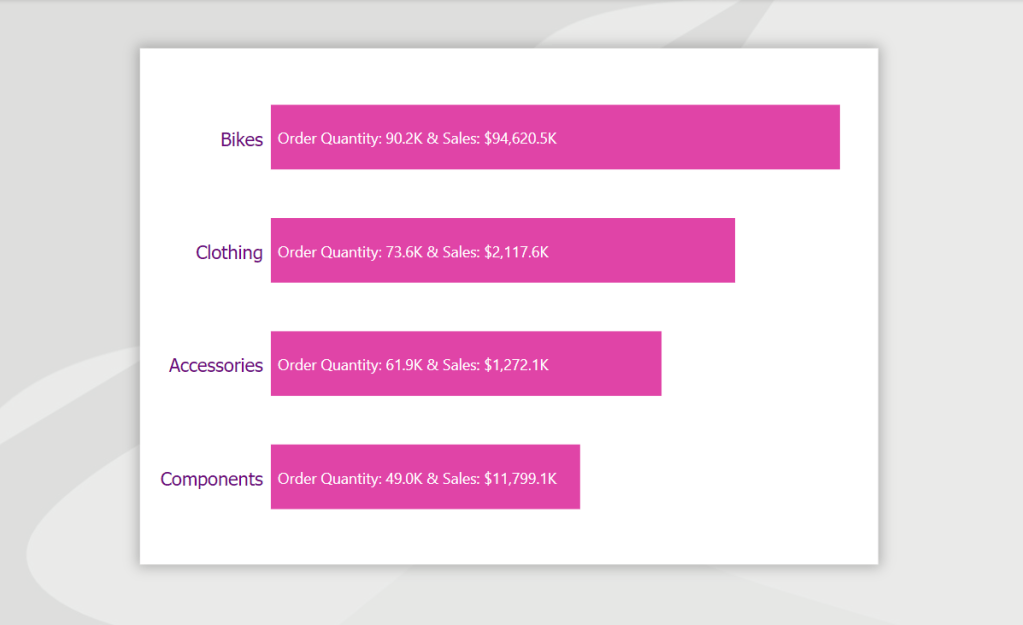
In this example, we have a Clustered Bar chart with “Category” and “Sum of Order Quantity”:
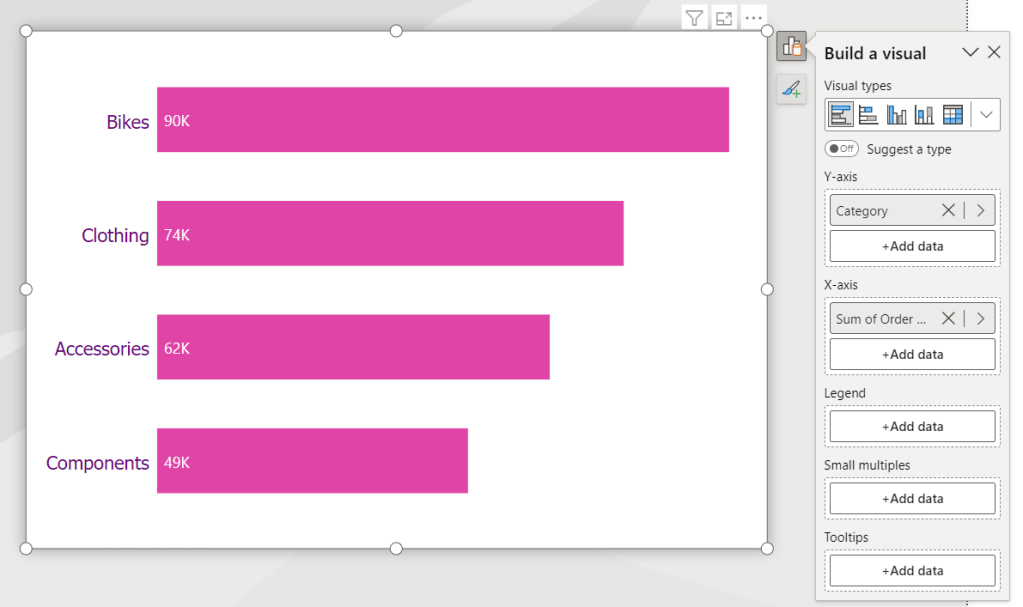
The label shows the Sum of Order Quantity for each category, But I like to see “Sales Amount” also in my visual label. To find “Custom label”, first go to “Format” of the Visual then select “Data Label” part:

Next, click on “ON” for the “Custom label” section:

In the “Field” add measure “Custom label”:

Then give the result we were looking for. “Order Quantity and Sales” on the same label.

“Custom label” will bring your visual information and view to the next level.
For more details please refer to this YouTube video from Bas:
https://youtu.be/EiIAkJ9R7mM?si=fQnKY1oV32aNR_1h
Do you like this feature? Comment below.

 Atefeh BI
👍🏻
LikeLike