
Have you ever customized a theme or added font to your Power BI reports?
In this blog post, I will explain to customize a theme and add a font to the Power BI report.
For example, I picked color codes from the Microsoft logo and customized the theme inside the Power BI desktop.
On the top ribbon of Power BI desktop click on View then select Theme and next select Customize current theme and change Theme colors based on color codes that picked from Microsoft Logo.
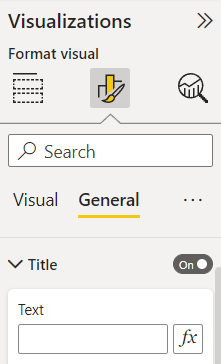
Other tabs will allow you to customize Text, Visuals, Page, and Filter pane fonts, and sizes,…

After applying changes by clicking on the Apply button, all reports will effect by that new changes.

Next, click on Save current theme and save this theme on your device for the next usage.

To add a new font to Power BI, open the .json file of the theme and modify the font. For example, this .json file has Calibri font:

I replace Calibri with Fira Sans font.
First, make sure that the font is installed on the computer, then add the new font and save the theme with the new name.

In the last step, browse for that new theme on the computer and select:

Now, the new font appears in the report.
The report with the new font will work on Power BI Service and all windows computers that have this font installed.
If you have to create more than one report for one company, it is better to create a customized theme and use it for all Power BI reports for that company.
These are great sites you can create themes and use in your Power BI reports:
https://powerbithemegenerator.com/
Let me know what you think. 👊




























 Atefeh BI