
Why do we use toggles in our Power BI reports?
Sometimes clients want to have as many details as they can when viewing reports in Power BI. One of the ways that we can implement to provide these details within the same page is by having a toggle that switches summary/details sections on and off.
Toggles can be used in lots of different situations, for example: some reports need to have dark/light mode, two languages or summary/details, etc.
I created a demo (using AdventureWorks database) and will show you step by step how to create a toggle in your report.
To get started, we will need to design our toggle buttons. In our case, I designed 2 button images that look identical to each other, however one of them is pointing to the right, the other is pointing to the left. Now we need to place these 2 images on top of each other in our report and provide them with a description that would appear beside these toggles.
Next, we should prepare all visuals that we need for our page for both sides. For example, in this demo I am showing two views; one table view and another for area chart view. I want to show the table when the toggle is pointing towards the table and show the area chart, when the toggle is pointing towards the area chart.
After preparing the toggle images and all visuals that will appear in both views, we hide one view and leave the other visible. Next, we will go to the View tab in Power BI >> Select the “Selection” and “Bookmarks” tabs in the ribbon.
Hide everything you do not need in the area chart view, and then click “Add” in the Bookmarks panel, give it meaningful name like “Area chart view”.
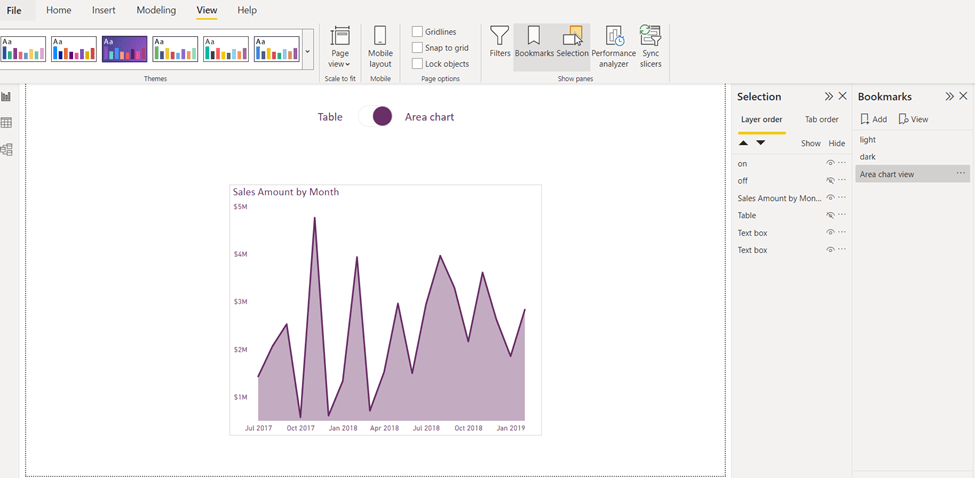
Then again for the table view, in the Selection panel, hide everything we do not need to see in our table view, then click “Add” in the Bookmarks panel, and name it “Table View”.
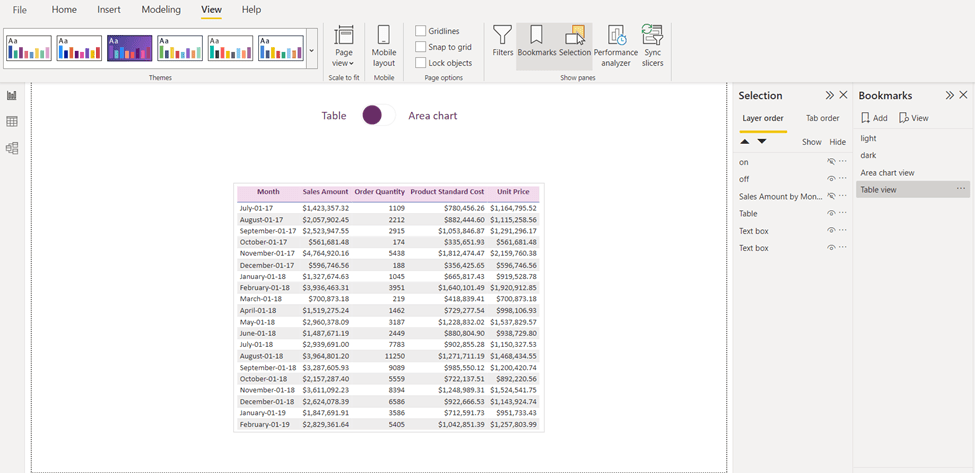
Second step is to add an action to our toggle images. Click on the toggle image that is pointing to the Table:
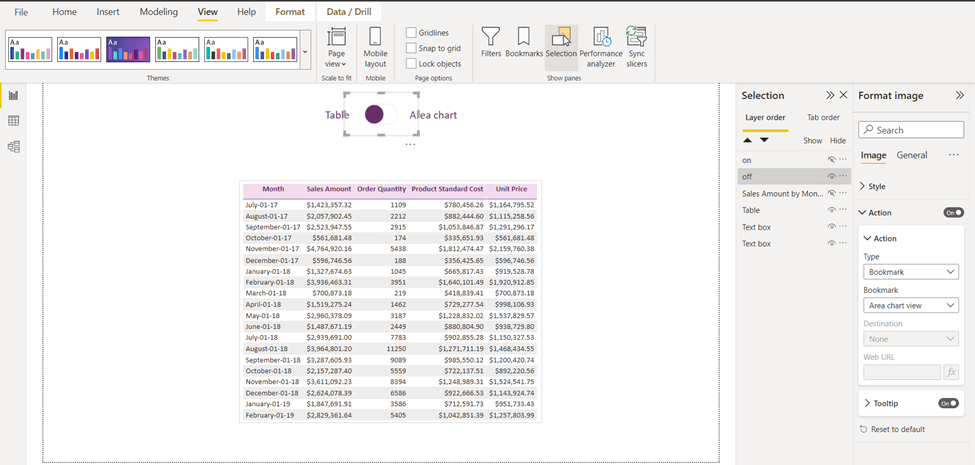
Go to format image>> action >> bookmark type then select “Area chart view”, that is all we need to do for this toggle. Next, once you press Ctrl+Left-Mouse Click on the toggle; you will go to the “Area chart view”.
For the last step, go to Area chart view and click on the toggle that is pointing to the Area chart, in format image>> action >> bookmark type then select Table view:

And you will see the result as below:

I have created another demo for dark/light mode. Let me know if this is something you would like to implement in your reports.
Will you use the toggle functionality from now on or have you ever used it before?
I would love to hear your thoughts and comments about this post.

 Atefeh BI
Thanks for sharing.
LikeLike
glad to hear you liked it Hossein.
LikeLike