
Have you ever faced a request from a client who asks for some visuals in a report with the ability to filter specific visuals but not all of the visuals on the report page?
For today’s post, I created a demo, together with an example. There are three visuals in this demo (a slicer, a clustered bar chart, and a table).
Based on the relationships between tables (Adventure Work database), Filtering Fiscal Year will affect both other visuals on this report page.

I want the slicer to solely filter the clustered bar chart and not the table.
Also, I want the selection of each cell in the table to make the clustered bar chart highlighted.
First, select the Slicer >> go to Format tab >> click on Edit Interactions, then select None for table visual. So, the slicer will filter the clustered bar chart, not the table visual.

Next, select the Table >> go to Format tab >> click on Edit Interactions, then select Highlight on top right corner of clustered bar chart visual.
After this setting, by clicking on each table cell, the clustered bar chart will highlight it.
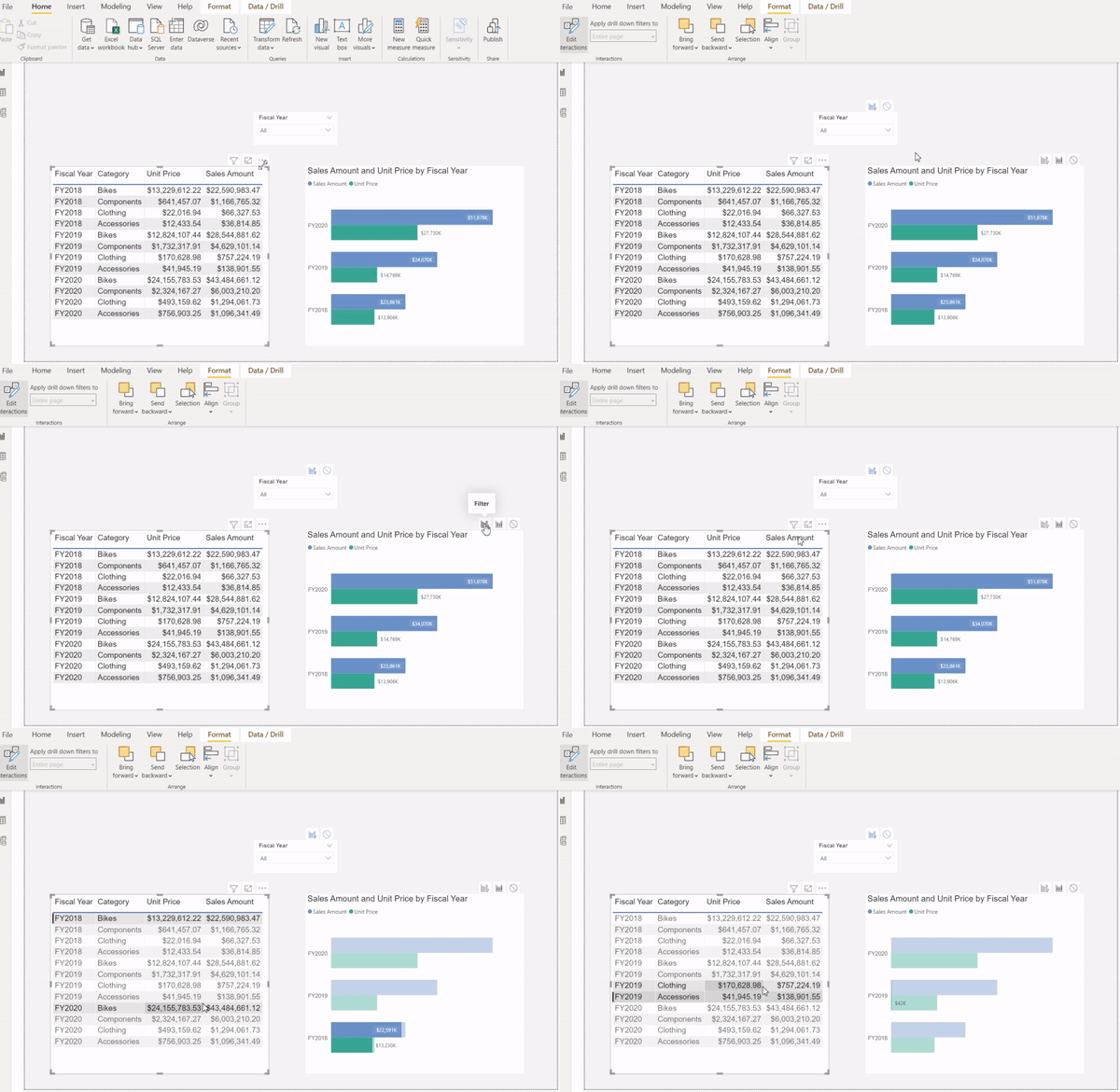
Here is the result:

I would love to see what you think.
Comment below.😊

 Atefeh BI
Thanks for sharing.
LikeLike
glad you liked it Hossein jan. 😉
LikeLike