
Dynamic formatting for measure is the way that we can define the format for measure, no matter the measure is using which data type.
I will explain this topic by the example.
I have the simple dataset and created the “Total Sales” measure just for the example and use this measure in two different kind of use cases for the dynamic format string.
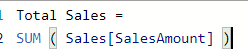
The first scenario is when we need to show the amount of measure with ” K, M, B” instead of 3, 6, and 9 zeros at the end.
So, I selected the measure –> Format –> Dynamic. Once click on Dynamic, the measure will have a dropdown for format setting. In the Format part, we can do each format that we want. For example, I put this:


And after applying this format, here is the result:

We can order this measure, and it is not counting as a string.

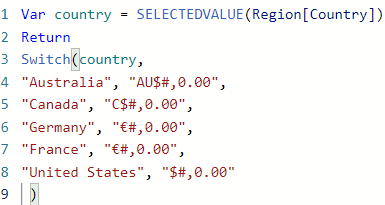
The second Scenario is about the country’s currency. We can define the currency symbol for each country and show it all in the same measure.
Here is the Format that I used for the dynamic currency:
And here is the result:

And still we can order this measure:

For more details please look at this YouTube video by Parvinder:
I would love to see your comments.

 Atefeh BI
سلام مهندس
ممنون بابت این اموزش
ی سوال داشتم از خدمتتون
این داینامیک فرمت در چه ورژنی از کدام نسخه پاور بی آی هست؟
LikeLike
Hi Khalil, thank you. Sure, you can find it in versions April 2023 and after. open powerbi desktop, Options and settings >> Options >> Preview features >> check Dynamic format … then close your power bi, and after opening it again, you will see that.
LikeLike