
-
Add Theme and Font to Power BI Reports – Power BI Tips#14
Have you ever customized a theme or added font to your Power BI reports?
In this blog post, I will explain to customize a theme and add a font to the Power BI report.
For example, I picked color codes from the Microsoft logo and customized the theme inside the Power BI desktop.
On the top ribbon of Power BI desktop click on View then select Theme and next select Customize current theme and change Theme colors based on color codes that picked from Microsoft Logo.
Other tabs will allow you to customize Text, Visuals, Page, and Filter pane fonts, and sizes,…
After applying changes by clicking on the Apply button, all reports will effect by that new changes.

Next, click on Save current theme and save this theme on your device for the next usage.

To add a new font to Power BI, open the .json file of the theme and modify the font. For example, this .json file has Calibri font:

I replace Calibri with Fira Sans font.
First, make sure that the font is installed on the computer, then add the new font and save the theme with the new name.

In the last step, browse for that new theme on the computer and select:

Now, the new font appears in the report.
The report with the new font will work on Power BI Service and all windows computers that have this font installed.
If you have to create more than one report for one company, it is better to create a customized theme and use it for all Power BI reports for that company.
These are great sites you can create themes and use in your Power BI reports:
https://powerbithemegenerator.com/
Let me know what you think. 👊
-
Part1: Adding “ALL” to the TopN slicer, Part2: List of all N values to the slicer (using parameter) – Power BI Tips #13
As some friends asked me questions about Tip#12, I picked two of them:
1)How to add “All” to the “TopN slicer”?
2)How to create the slicer to select each number N we need to evaluate TopN?
I wrote about the TopN slicer in my previous post Power BI Tips#12 and will continue to answer these questions in this post.
The first part, Starts by adding the row “All” to the column String TopN, which is the column of the Table I created previously for the slicer. (I explained this with all details in the post “Power BI Tips #12)

Then we can change that measure we had before to this:

Next, use this measure in Sales Amount(Rank):


Then we have this result:

Second Part, I will show creating all the different N values that exist in the column we want to pick TopN based on that. Dynamic TopN based on the distinct count of that column.
First, I added a parameter from the modeling tab:

There are lots of ways to achieve this goal. I used a Numeric range that was incremented by the number 1 and put the random number for the “Max”. When the column table appeared, I selected on parameter column and changed the Max range to the Max number of different cells in the “Color” column:

The parameter code gives me a single-column table with different N values from 1 to Max non-blank values that I need for TopN. The “Color” column has 10 distinct values.
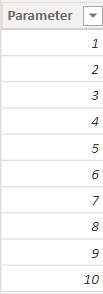
Then simply change the measure we had before:

Next, added “Pick N 2” to the main measure:

And, here is what we expected:
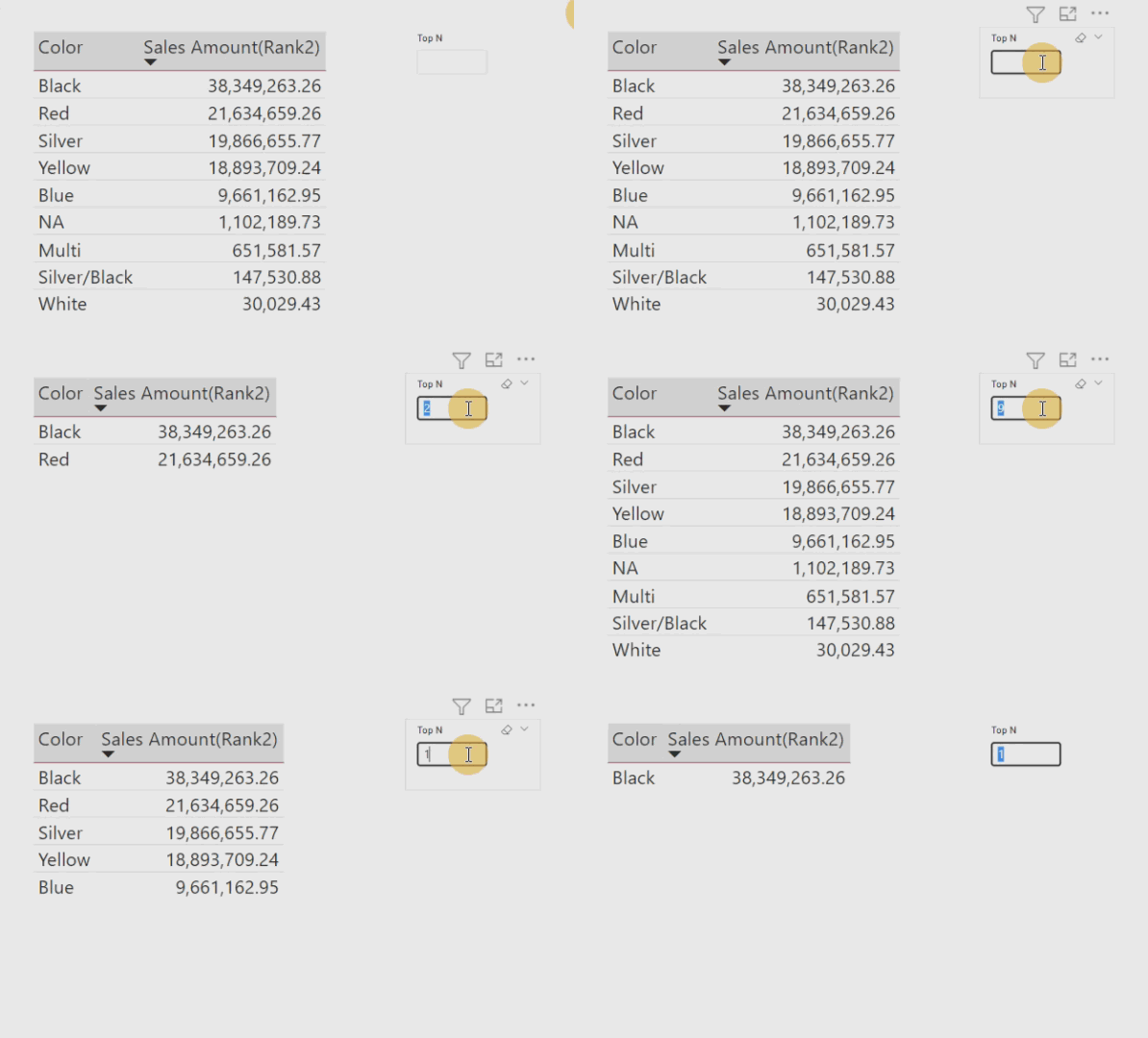
Comment your thoughts.
-
Top N Slicer (RANKX Function) – Power BI Tips#12
Have you ever used Top N Slicer in your Power BI reports?
This post will show you how to create Top N Slicer.In this example, we will find Top N Product Colors based on their Sales Amount.
First, I wrote the RankX Measure:

Then, I added a Table and Data Manually to the report for the Top N Number That needs in this report. This Table has Two Columns, “String Top N” and “Values Top N”:


And Sort “String Top N” by “Values Top N”:

Next, add Slicer to the report and select the “String Top N” column.

For connecting Slicer to other Visual, I created measure Pick N:

Pick N measure will pick Values From “Values Top N” column.
If either selected from Slicer, measure Pick N shows “Values Top N” or if not, it shows Max Rank Value that exists. That means this measure always gives us the number.Then we will apply Pick N measure to the measure Sales Amount (Rank) then instead of “Sales Amount” that’s connected to the Slicer Top N.
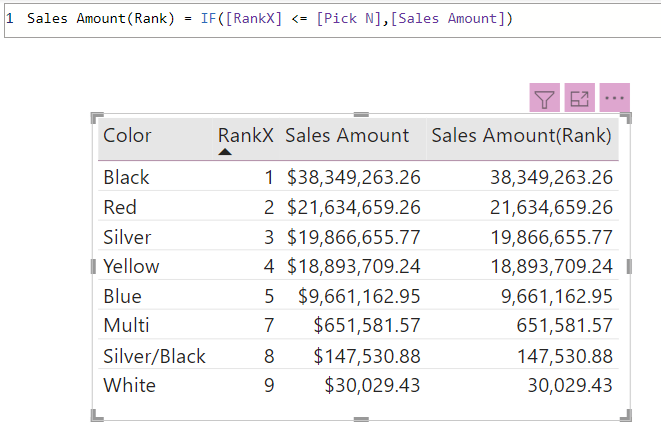
And here is the result:

Comment below with your ideas about this post !!!
-
Calendar Visual Filter Table with Dynamic Title – Power BI Tips#11
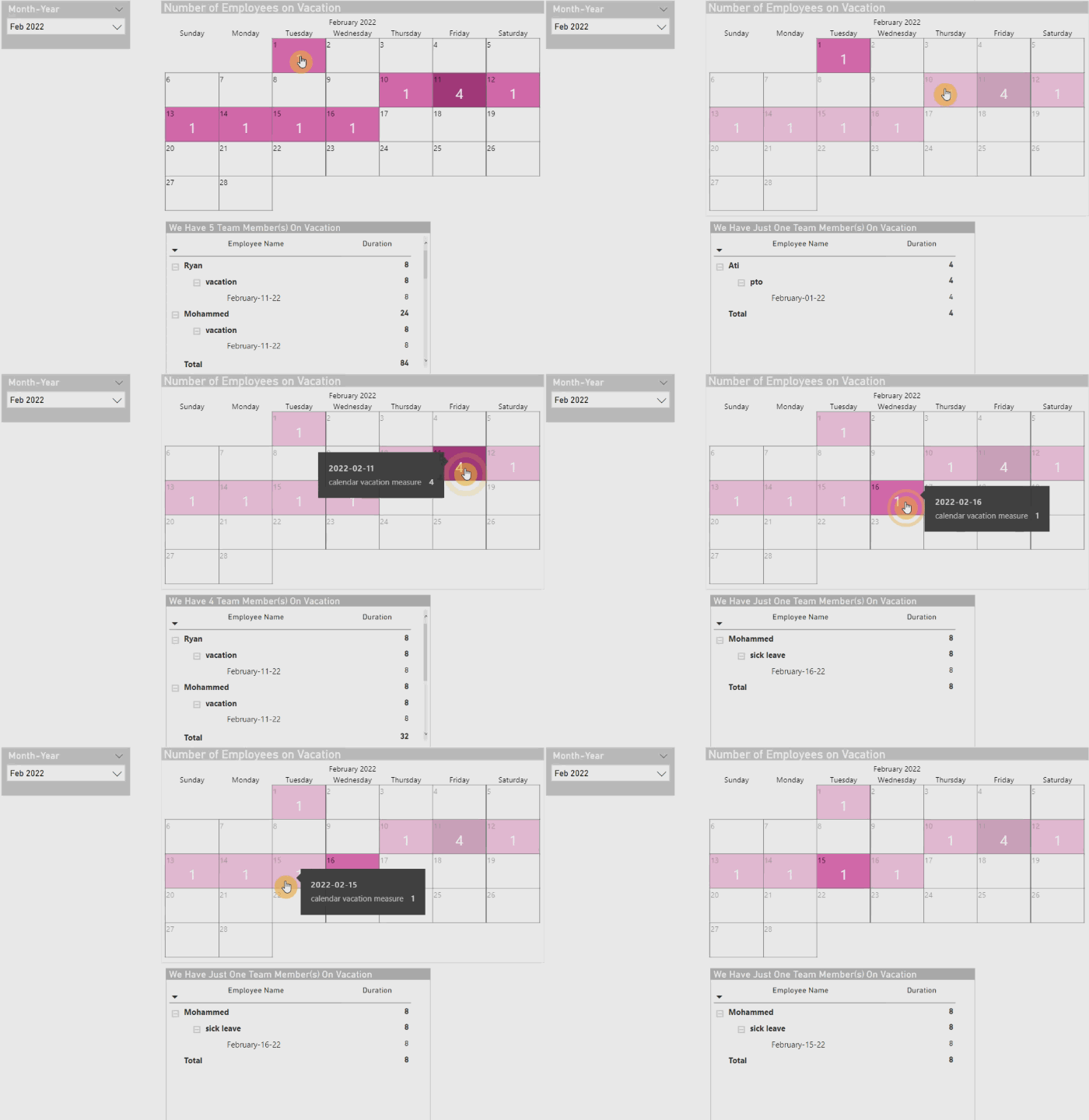
In this post, I will create the dynamic title for the Table visual in Power BI report. This method can apply to almost all visuals with the title.
I used Calendar Visual to filter Table visual. For instance, selecting a date in the Calendar will filter the Table visual. Following pervious Post Tips#10 we have a date slicer and Calendar visual, and I added a Table containing details about employees’ leave types.

For creating the dynamic title, I wrote this measure:

And put it in the title of the Table visual.
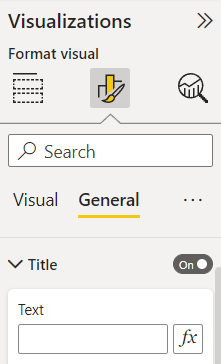
In Title dropdown click on fx, then in Title text >> Format style >> Field value >> measure Vacation Title all employee.

Now by selecting each date we have employee on leave, the number of employees and details inside the Table visual will change.
I love to hear your thought about this post.
-
Calendar Visual in Power BI reports – Power BI Tips#10
In this post, I will explain how businesses and employers can use Calendar visuals to record the number of employees on leave on specific dates.
Our primary aim is to achieve this result:

I prepared a demo for explaining Calendar visual by creating a table with sample data of employees and their leaving types. Here is a table named “Leaving Employee“:

First Step, I added a Date Table and made the relationship with the “Leaving Employee” Table.
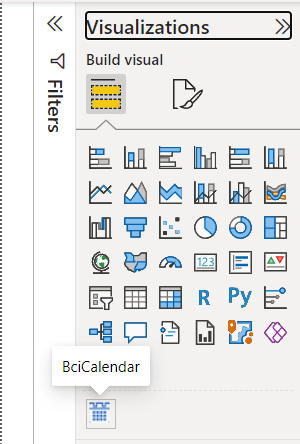
Next, I Imported “Beyondsoft Calendar” visual to the report:

Now, I can see the Calendar visual and click on that to add it to the report page:
Next, I created a measure to calculate the number of employees based on their leaving types.

I Wrote the “if” logical function in the last row of the code because I prefer to see the Calendar visual show up for months that have no records of the employees on leave. Otherwise, the Calendar visual doesn’t show up.
As the “Leaving Employee” table has data mostly from February, I put a screenshot of this month here:
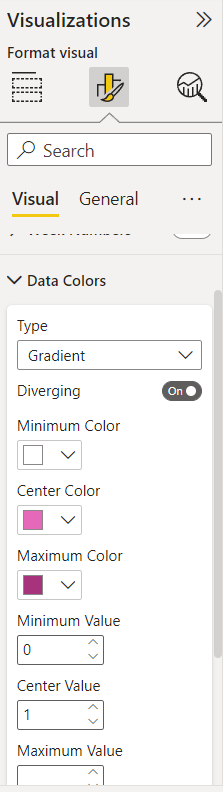
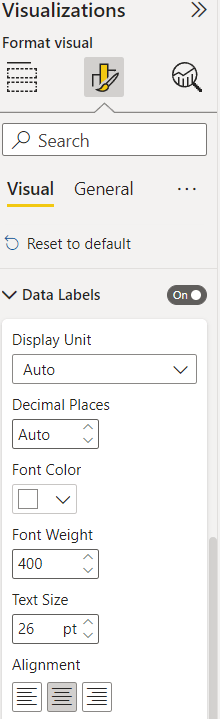
Also, we can set the empty part of the Calendar visual in the Format Visual by selecting Minimum Color in Data Colors same as Font Color in Data Labels. With this setup, we will have a whole year calendar even if there are months without employees on leave.
And now we reached the goal.
I will continue this topic in future posts. Leave your thought in a comment. 👊
-
UNICHAR Function in Power BI Reports – Power BI Tips #9
In this post, I will show the use of the UNICHAR function to make Power BI reports more interactive.
First, I selected the measure on which I want to choose the threshold. In this example, I picked the “Cost” measure. The “Cost” will change based on month selection.
For this measure, I applied Black Up-Pointing Triangle when the “Cost” is greater than or equal to 500,000$ and Black Down-Pointing Triangle when the “Cost” is less than 500,000$. Check here for more information about Unicode characters.


Next, I added the “#FF794D” color to the Down-arrow triangle and the “#228848” color to the Up-arrow triangle using this switch measure:
Check here for picking the color.
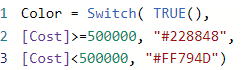
Then, I added Color measure in Conditional formatting >> Font color to the Unichar measure.
*Note that I put measures in Table visual and matched all headers and grid colors with a background color which in this example is white.

Then select OK:

After applying these steps, then we can see the result:
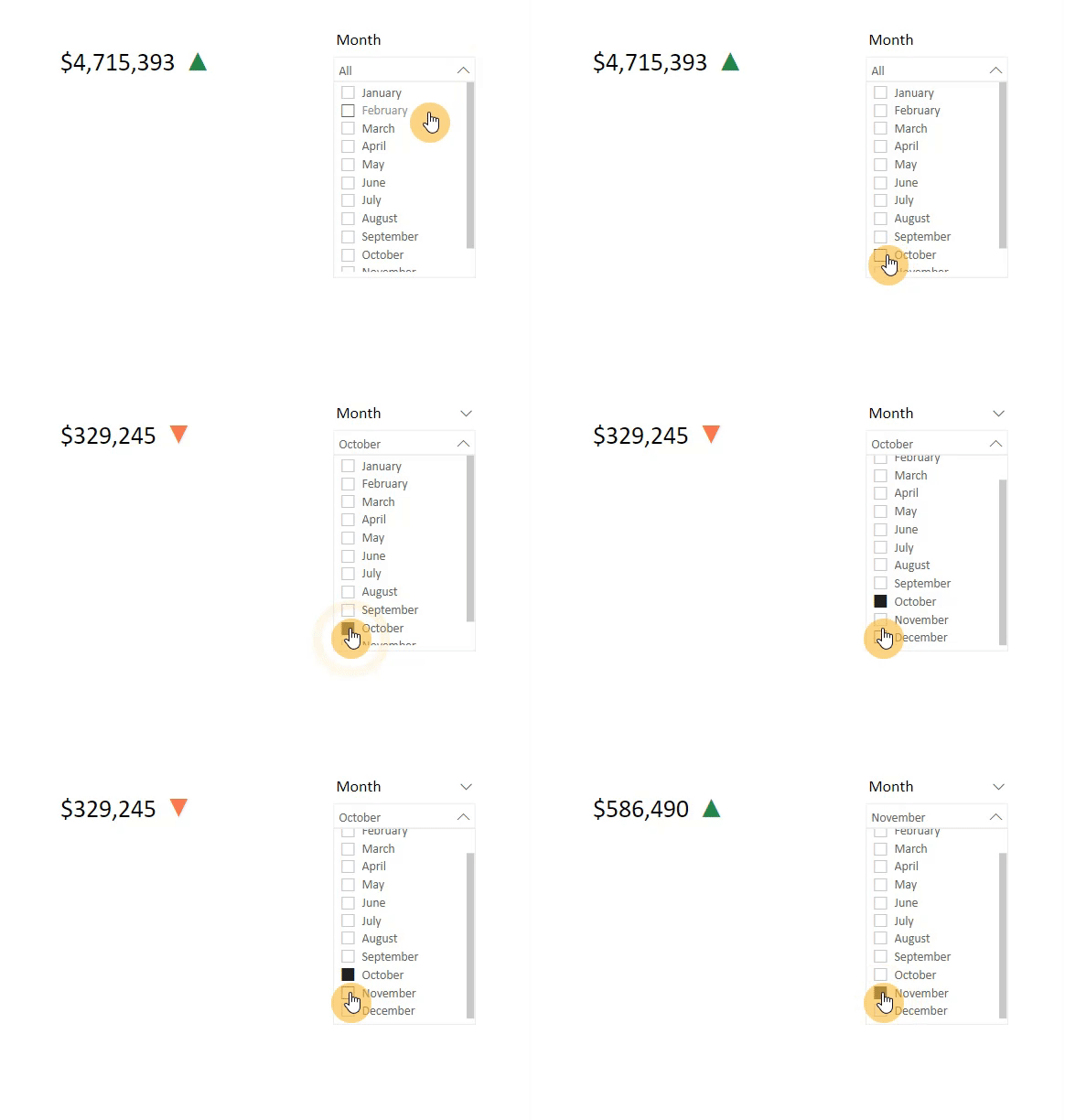
Here is the final result of the visual:
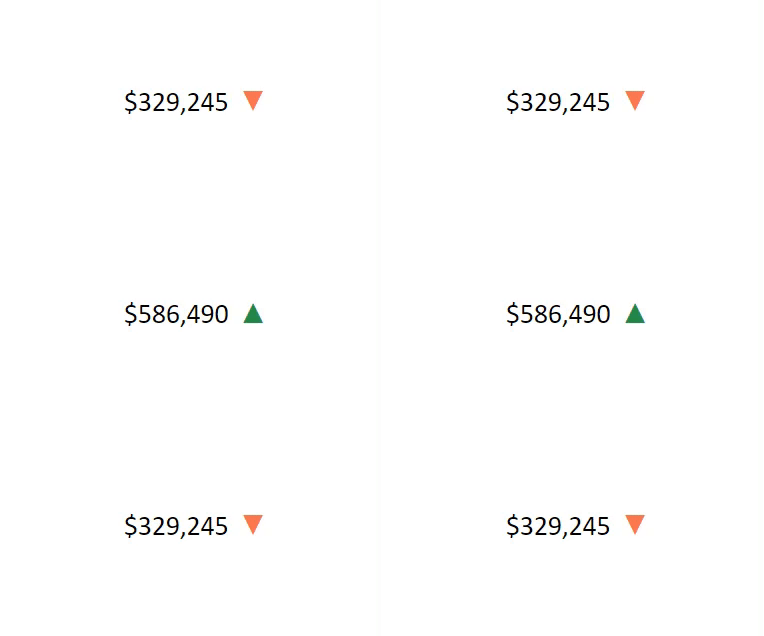
Write your thoughts in the comment. 👊
-
Page Tooltips in reports – Power BI Tips #8
I use page tooltips rarely, but sometimes clients request to see more details in one visual.
In this post, I will show how to create a tooltip page.
I created a demo using Adventure Works Database.
Start by choosing the page you want to be as a tooltip page. It is better to use a new page for this purpose.
Click somewhere on the page >> Visualization >> click on Format page >> page information and allow to use the page as a tooltip. In the Canvas setting, >> select Type as a Tooltip. Then choose vertical alignment by selecting Middle/Top. I like to go with Middle.Next, we create all visuals and details that need to be on the tooltip page:

On the main page for the visual that we use the tooltip page on it, select that visual, click on Visualization >> Format Visual >> on the General tab, put Tooltips on >> then in Options drop-down >> in Type, select Report page, and in Page, put the tooltip page name.
And here is the result: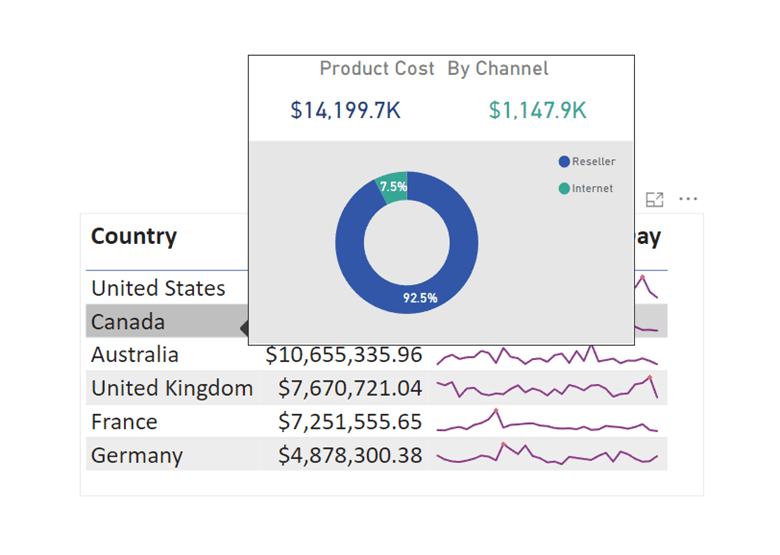
I hope you liked this post. Let me know what you think.
-
Edit Interactions in Power BI reports – Power BI Tips #7
Have you ever faced a request from a client who asks for some visuals in a report with the ability to filter specific visuals but not all of the visuals on the report page?
For today’s post, I created a demo, together with an example. There are three visuals in this demo (a slicer, a clustered bar chart, and a table).
Based on the relationships between tables (Adventure Work database), Filtering Fiscal Year will affect both other visuals on this report page.
I want the slicer to solely filter the clustered bar chart and not the table.Also, I want the selection of each cell in the table to make the clustered bar chart highlighted.
First, select the Slicer >> go to Format tab >> click on Edit Interactions, then select None for table visual. So, the slicer will filter the clustered bar chart, not the table visual.

Next, select the Table >> go to Format tab >> click on Edit Interactions, then select Highlight on top right corner of clustered bar chart visual.
After this setting, by clicking on each table cell, the clustered bar chart will highlight it.
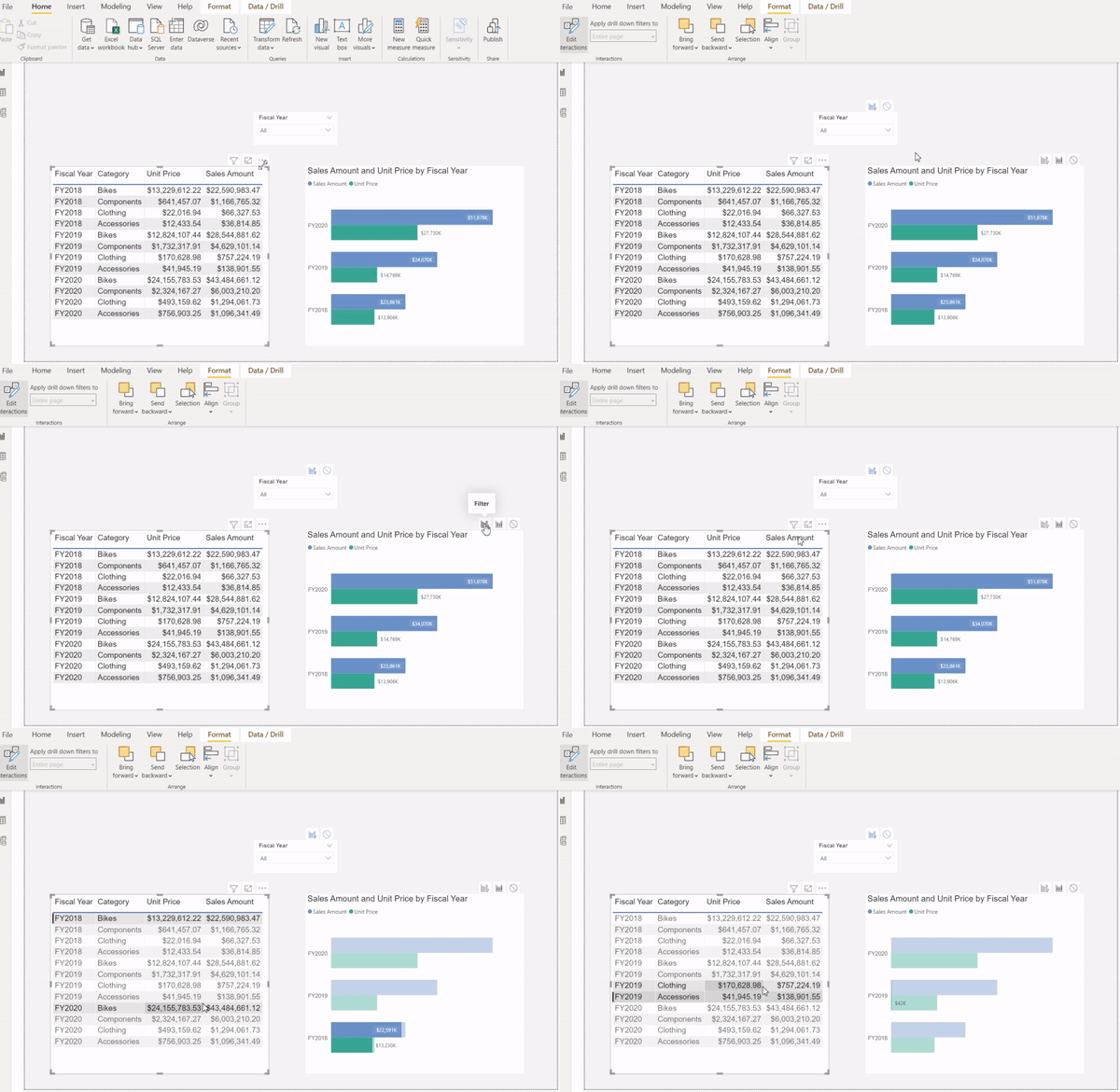
Here is the result:

I would love to see what you think.
Comment below.😊
-
Light/Dark mode – Power BI Tips #6
As promised, I prepared a demo to show you how we can use toggles to switch colors in Power BI reports from Dark to Light mode and reverse.
In this post, I will show you this design with an example..
First, I created a light colors for visuals on this report’s page. Then, I add the toggle on this page and two texts named “Dark” / “Light” on both sides of the toggle.
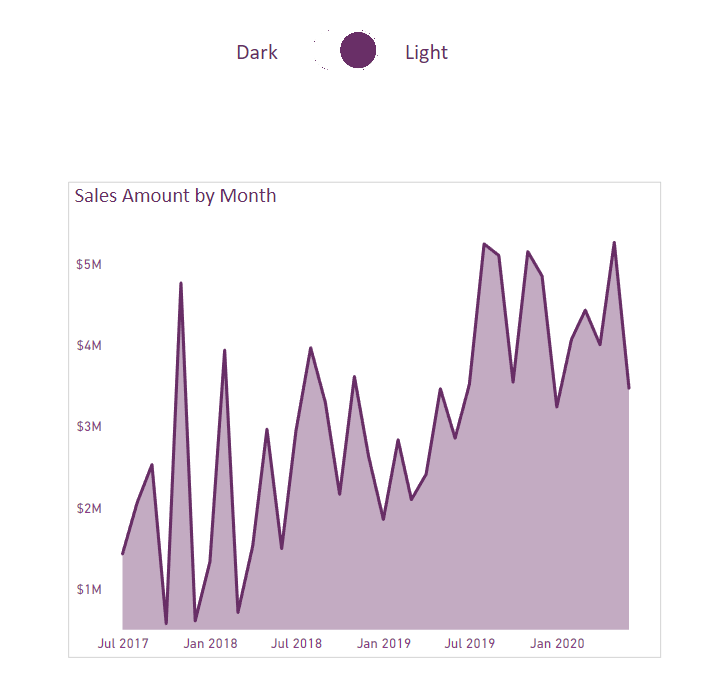
Next, I duplicate all visuals with dark colors from this page at the same position inside the same page, then I hide the visuals that existed here with light colors. I just need to add a new toggle with the grey color pointing to the Left (Dark) and put it on top of the existing toggle.

For creating a dark background in Dark mode, go to View tab >> select Selection pan >> Layer order and put a rectangle shape with black color; under all visuals. By doing this, the Shape will appear behind all visuals.


Shape at the end Then by following the steps from my previous toggle post, I made this toggle that works perfectly.
And here is the result:
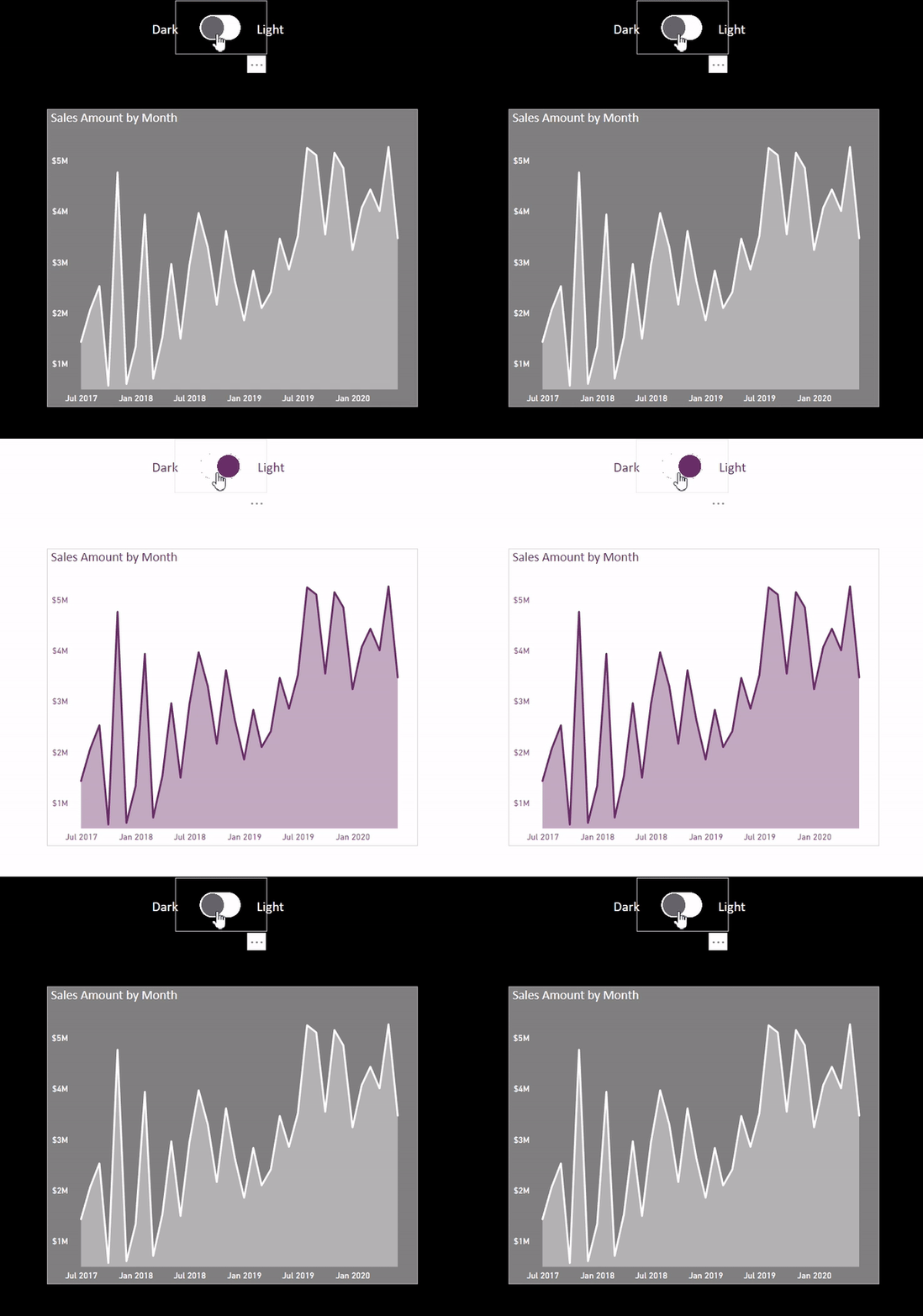
Let me know what do you think? 👊
Did you use it before? Comment below.😊
-
Page navigation – Power BI Tips #5
How to switch between pages in power bi?
As you may probably know, Power BI comes with a feature for creating page navigation visuals, and in this post, I will show you how to use this page navigation in Power BI.
There are many ways to achieve this, so, in this post, I will explain my two favorite ways to keep it short. I will cover other approaches in future posts.
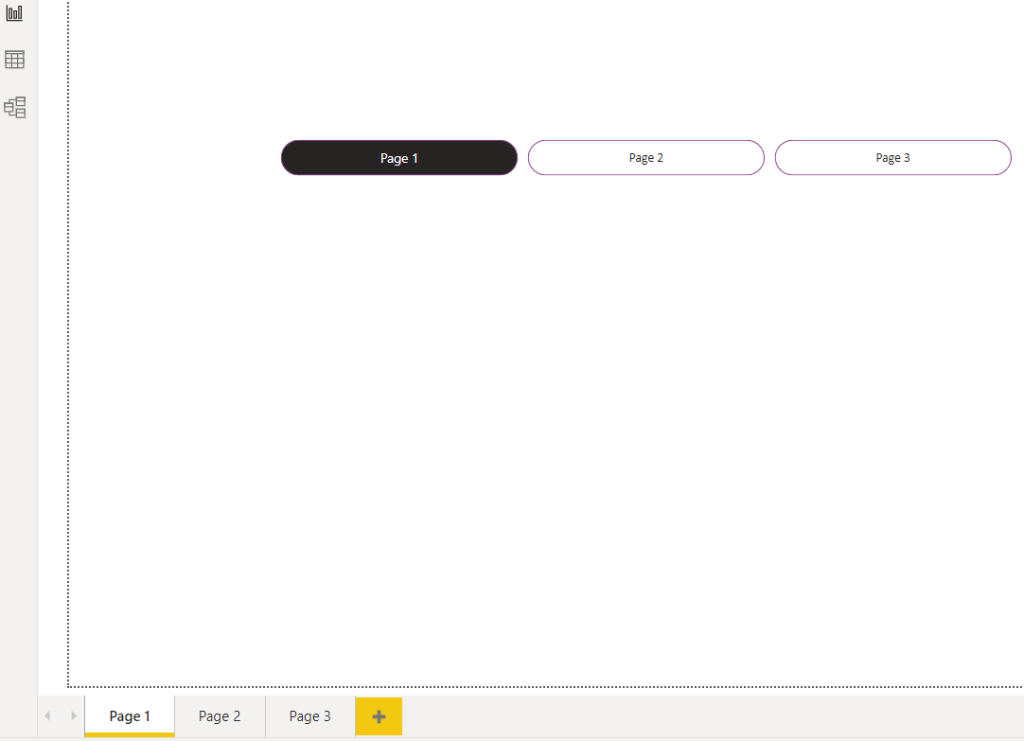
The first method is by clicking on the Insert tab in Power BI, and going to the Buttons, and selecting Navigator then Page navigator creates the visual page navigation which will show all pages that you have in the report.

The option Show hidden pages will add/remove hidden pages in the visual.
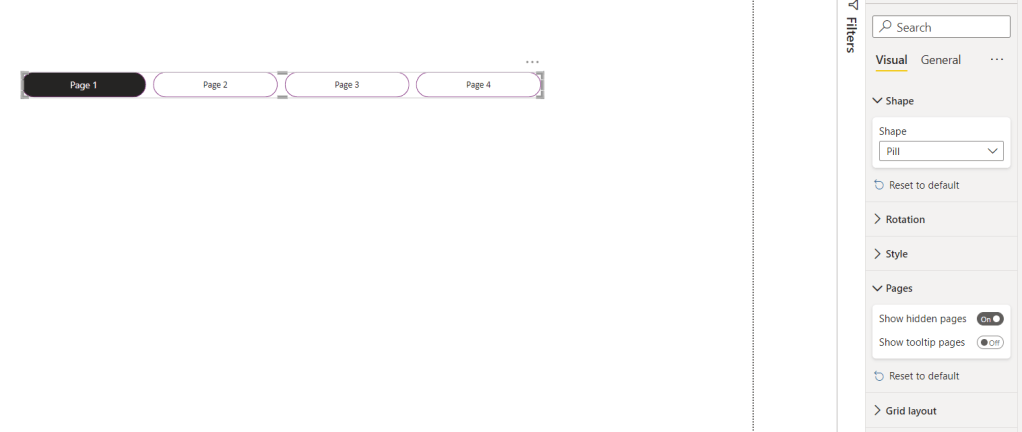
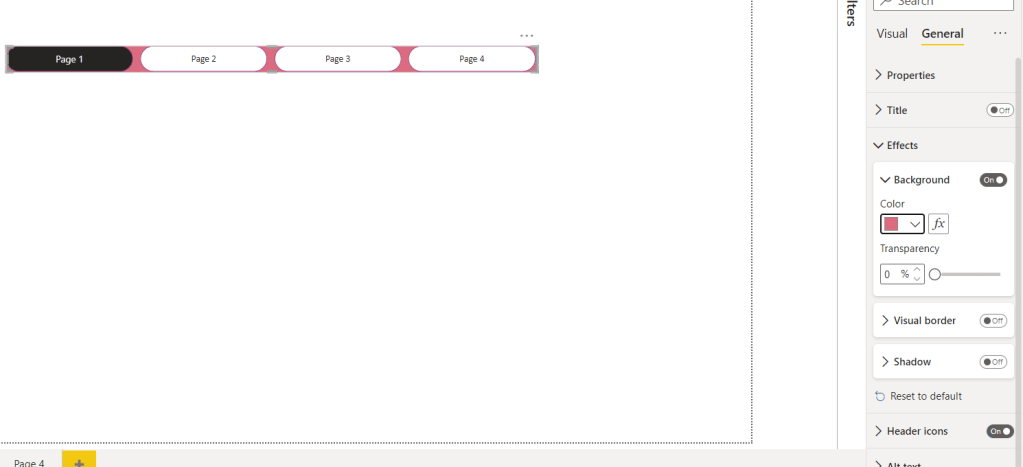
Also, there are options to design the visual by changing items in effects, default, color, or each type of design you like for the report. The benefit of this approach is that once you remove one page, it will automatically hide the item with the name of that page inside the visual. For example, I removed Page 4.
Another main benefit of this approach is that once an effect is added to the visual, it will apply to all buttons, like Shadow, Background,…
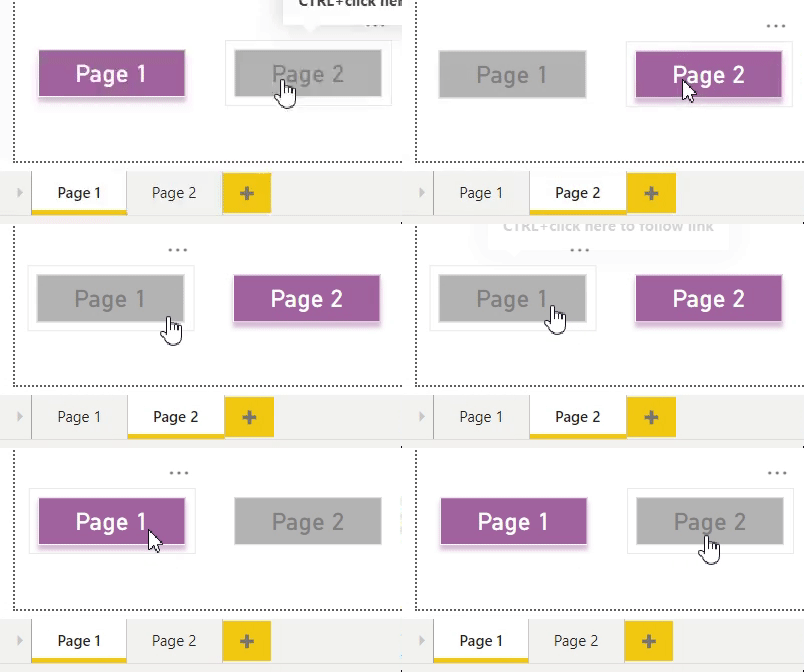
The second approach is to add a button/shape for each page. In this example, I put a rectangular shape for each page. I have two pages for this report.
I start by selecting the Image tab, clicking on the rectangle shape, and putting two rectangles for my pages. I chose a random color for the same page, and for the other page, I picked the color grey.
When you are on Page 1, click on page 2 shape, set Action to on >> Type to Page navigation >> Destination to Page 2.
Next, go to page 2, click on page 1 shape, and set Action to on >> Type to Page navigation >> Destination to Page 1.

now, you will see the result:
Have you used any of these before? Let me know your ideas.
 Atefeh BI